AI Talking Photo: Give Your Photo a Voice

Turn a portrait into a spoken welcome, lesson introduction, or project update.

Audio
0/500
Select a Voice
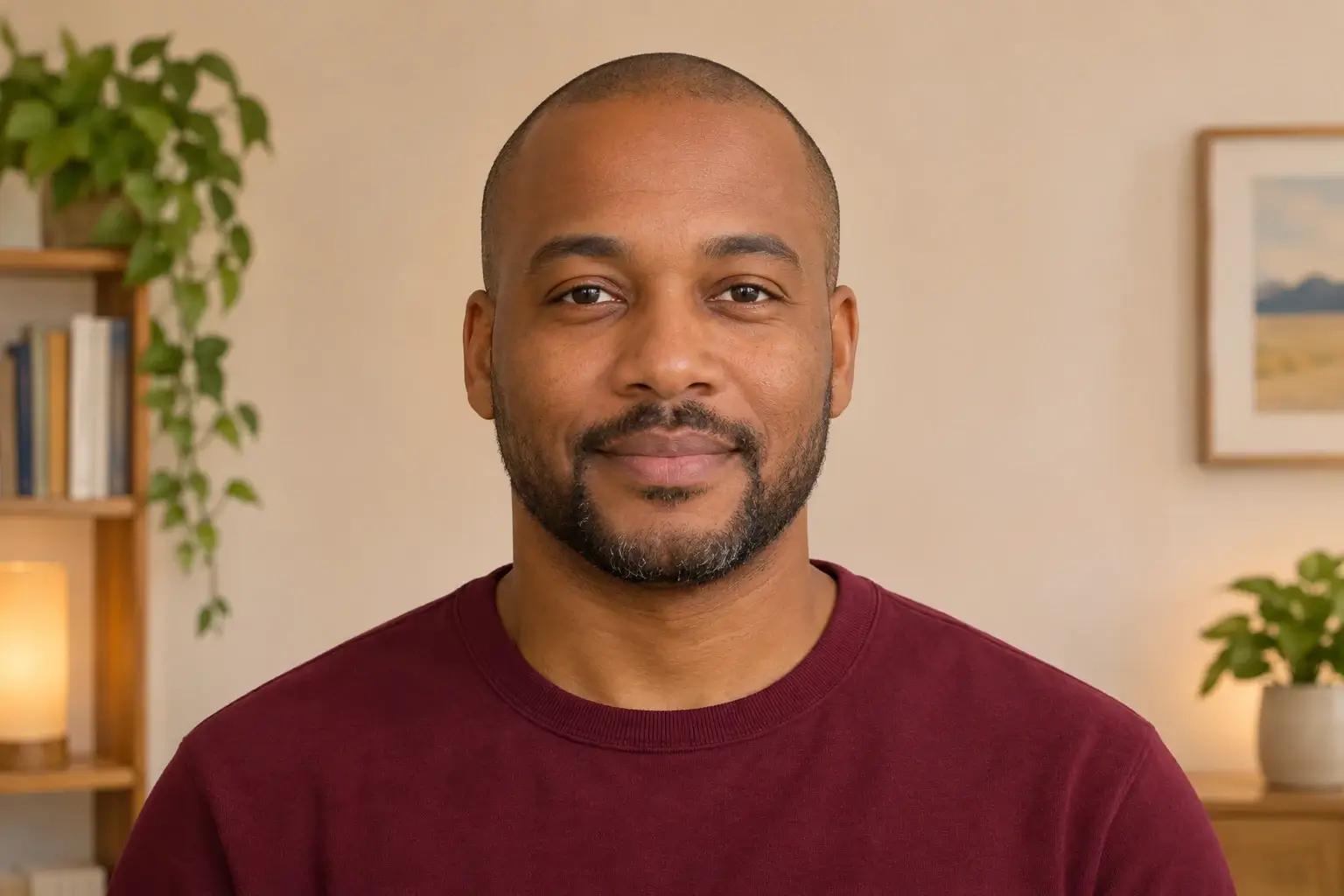
    Front-facing source portrait of a man in a burgundy shirt against a warm interior

    A portrait with something to say.

    Give a photo a spoken welcome, a lesson introduction, or a project update. Add your words or upload a voice recording to create a talking-photo video.

    Start with a clear portrait. Choose text with an available voice, or use audio that already has the tone and pacing you want.

    A talking photo gives a short message a visual presenter. Use it to open a conversation with your audience, introduce something they are about to see, or add a spoken note to a collection of images and written updates.

    Make your photo talk

    Put a face to the message.

    A welcome, a new topic, an update from the studio. Start with one thing worth saying.

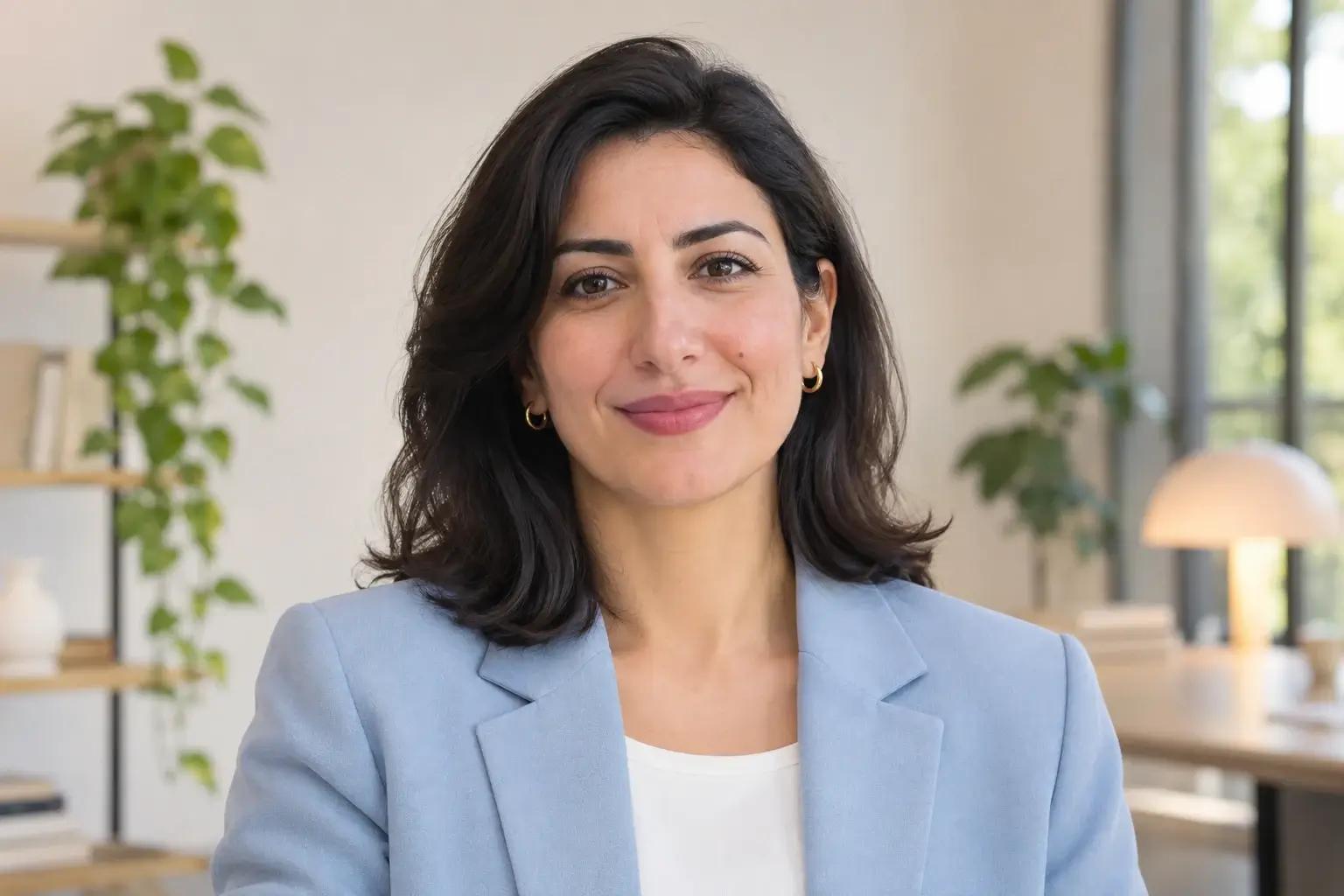
    A woman in a pale-blue blazer facing the camera in a bright workspace

    Make the first hello personal

    Welcome people to a project, a community, or a new page with a short introduction. Say who the message is for and what they can explore next. A spoken opening can sit alongside the written information on a welcome page or in a shared project update.

    “Hi, welcome to the project. Let me show you what we are working on and what comes next.”
    Sample script
    A teacher in an amber sweater facing the camera in a bright home study

    Open the lesson

    Put a face to the topic before the main material begins. Introduce the subject and the first activity, then let the rest of the lesson carry the detail. Use the clip as an opening for a class presentation, a learning page, or a prepared set of materials.

    “Today, we will turn a simple idea into a story. Let’s start with a character.”
    Sample script
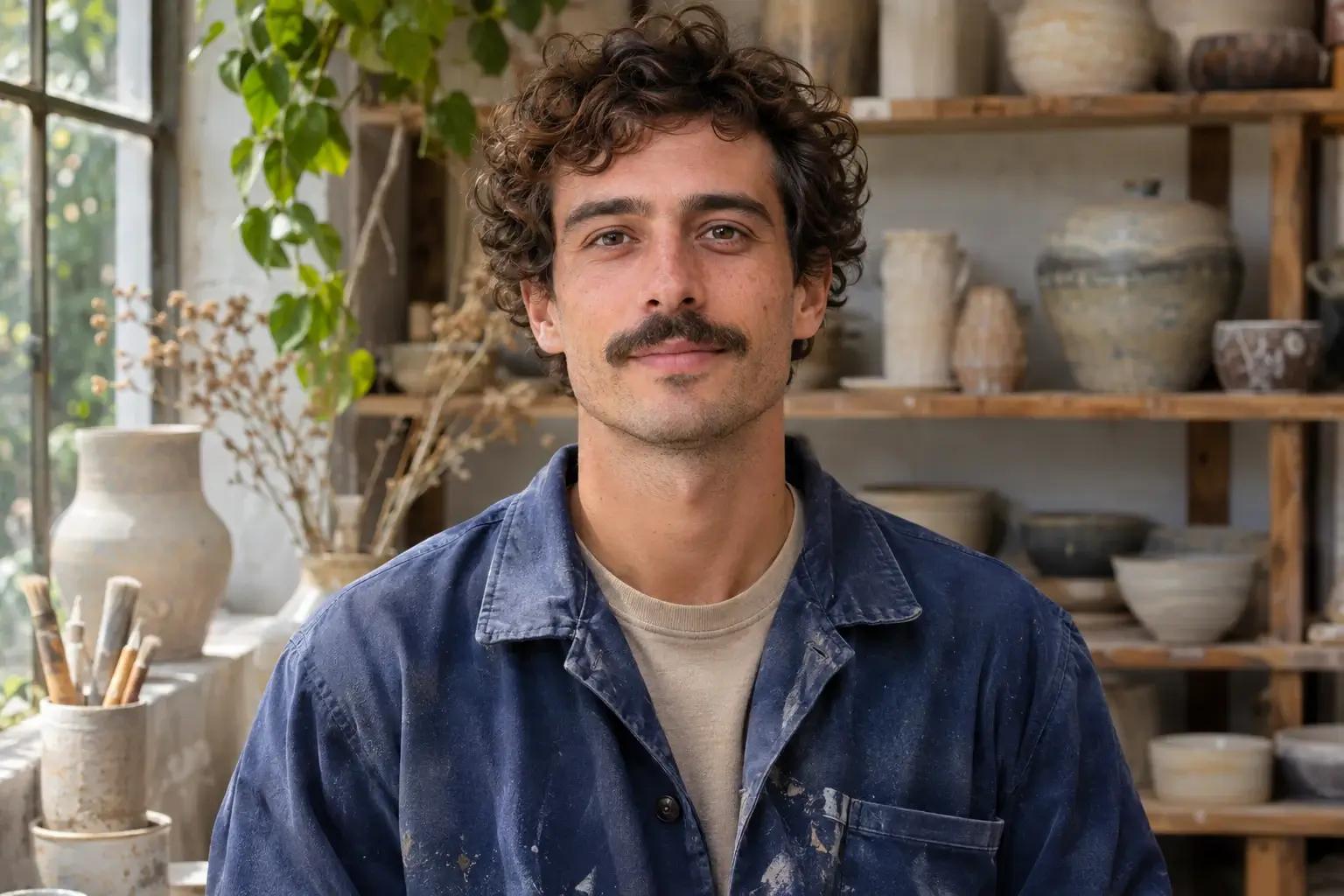
    A ceramic artist in a blue jacket facing the camera in a pottery studio

    Share what you are making

    Introduce new work with a spoken update alongside your photos, collection, or project. Share what has changed and the detail you want people to notice. A short introduction can give a new piece, an exhibition, or a progress post some context before people explore the work.

    “The first pieces are out of the kiln. Here is a quick look at what I have been working on.”
    Sample script
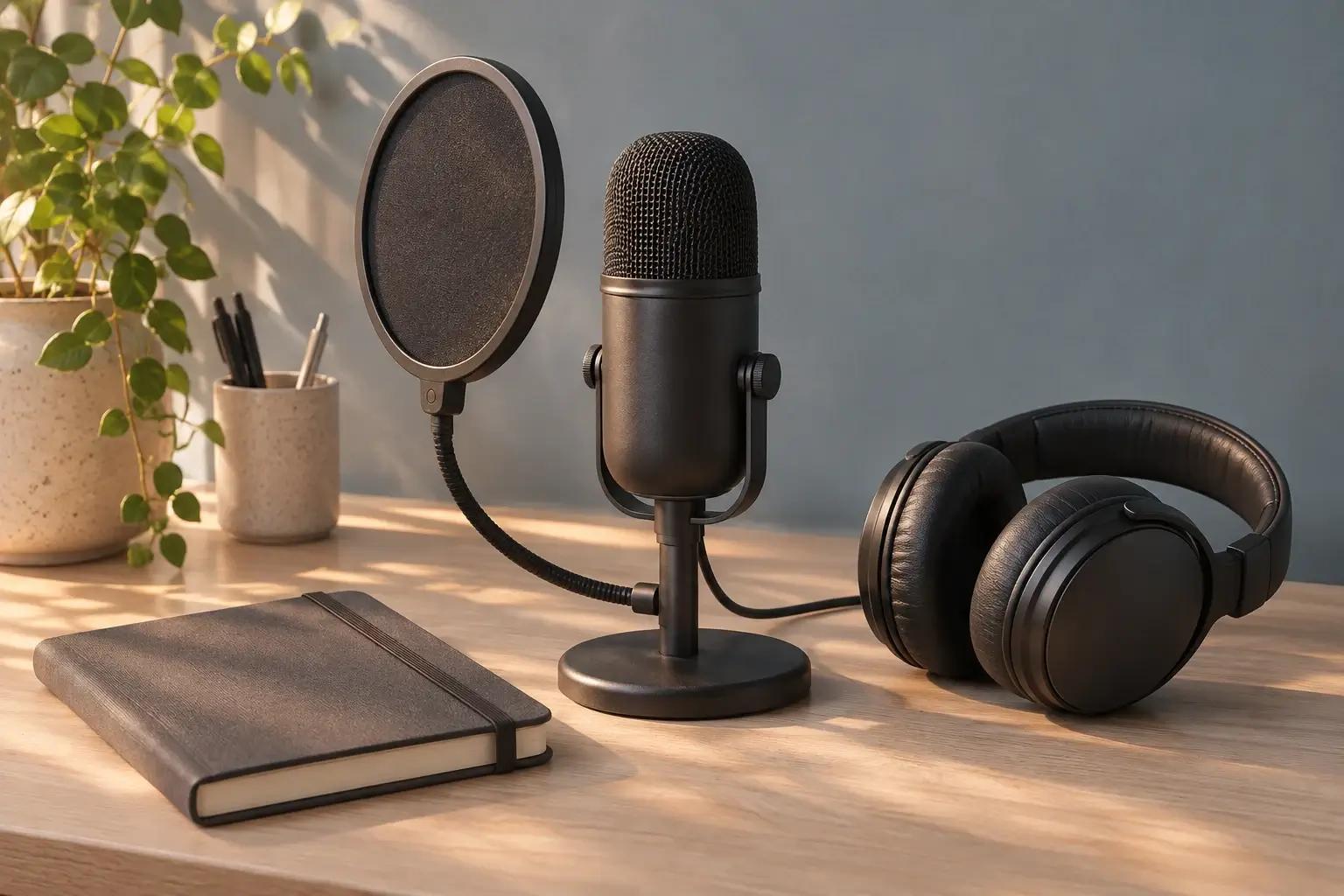
    A desktop microphone, pop filter and headphones beside a blank notebook on a wooden desk

    Your words. Your way of delivering them.

    Write the message

    Type a short script and choose a voice from the tool. A direct opening and a few conversational sentences make a useful starting point for a welcome or an explainer.

    Choose the words around the occasion: a friendly greeting for a community, a clear topic for a lesson, or a brief announcement for a project. Read the script aloud as you write so the sentences have the rhythm of a message someone would say.

    Bring the recording

    Upload an audio file prepared in your recording app. Keep your own pronunciation, pauses, and delivery, within the duration and file limits shown in the form.

    This route is useful when you have already prepared a greeting or recorded a spoken update. The audio supplies the performance you want to use with the photo. Choose a recording with a clear voice and the beginning and ending you want in the clip.

    How to make a photo talk

    Pair a portrait with the message you want people to hear.

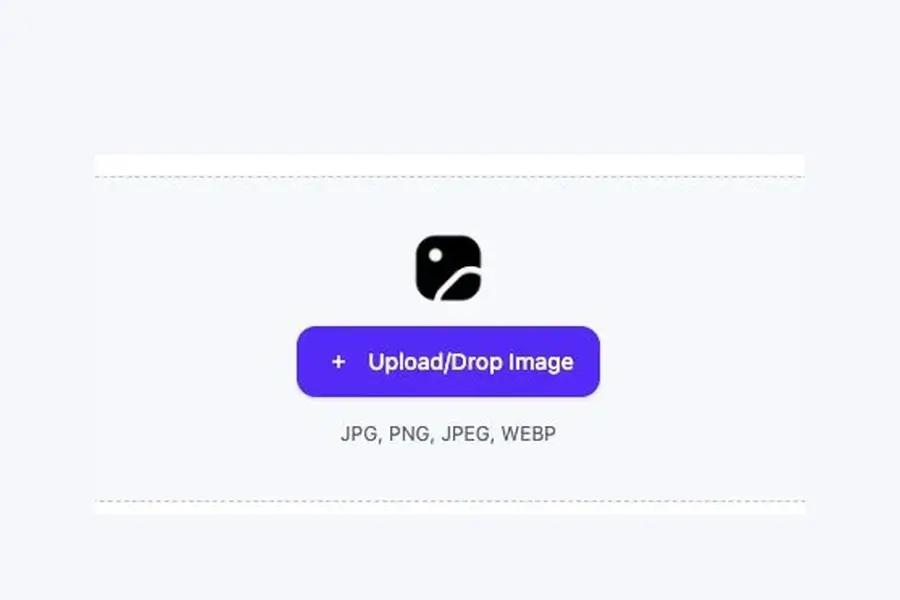
    1. Portrait upload button in the talking-photo tool

      Upload the portrait

      Use a clear, front-facing photo with the mouth visible.

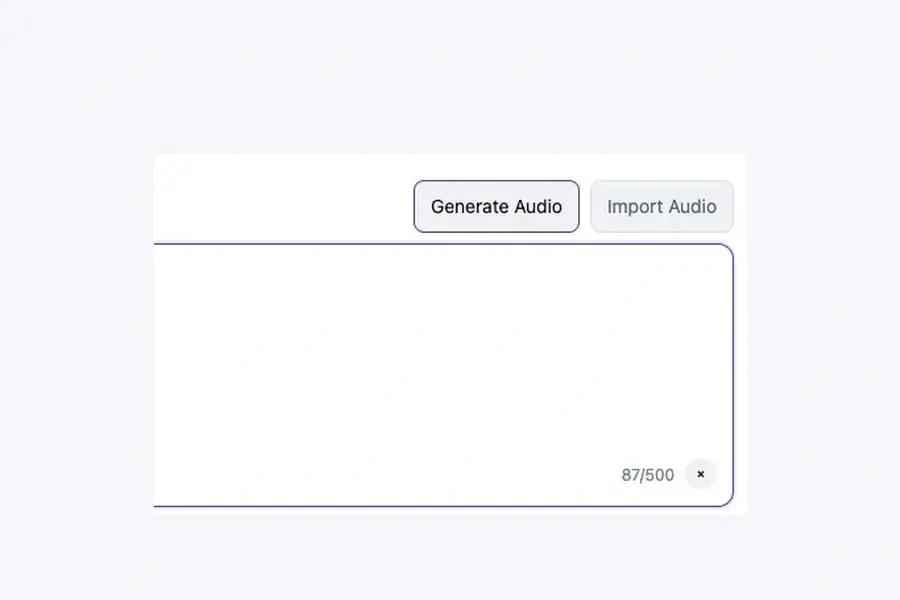
    2. Generate Audio and Import Audio choices

      Add the voice

      Choose Generate Audio for a script and voice, or Import Audio for a recording.

    3. Generate button in the talking-photo tool

      Create the talking video

      Select Generate. Watch and download the finished video from its task page.

    Making your first talking photo

    What kind of portrait should I use?

    Use a clear, front-facing photo with the mouth visible and the face well lit. Choose the expression and framing you want as the starting point for the video.

    Can I use my own voice?

    Yes. Upload a prepared audio recording to use its delivery in the video. In text mode, select a voice from the available list.

    Can the same photo say something different?

    Yes. Create a new video with another script or audio file. You can use the portrait for different welcomes, topics, and project updates.

    Where can I watch and download the video?

    After creating the video, follow its progress on the task page. Open the completed result there to watch and download the clip.

    Give your photo a voice.

    Choose the face. Add the message. Make your introduction a video.

    Create a talking photo